


A good photo calendar gives you something worth looking at each month and enough room for the dates that matter. Start by choosing the format, then build a small, organised set of photographs before you open the editor.
For exact dimensions, paper choices and current prices, use the Picsme calendar guide. This article focuses on planning the pictures and checking your design.
Choose a format that suits the wall
Think about where the calendar will hang and how far away you will read it. Picsme offers A5, A4 and A3 single-page wall calendars, plus A5 and A4 double-page designs. Check the displayed dimensions and layout before choosing.
A single-page layout keeps the photograph and calendar together. A double-page layout gives the image and dates separate areas. Look at the product preview to decide which arrangement works best for your pictures and handwriting.
Make a shortlist of photographs
Choose a main photograph for each month, a cover image and a few alternatives. A family calendar might follow birthdays, holidays and seasonal moments. A travel calendar could revisit one trip each month; a pet calendar could use a series of favourite portraits.
Use the original image files rather than screenshots. Put them in a folder and give them useful names, such as January-covering-snow or August-beach. This makes it easier to find the right picture when you start designing.
Match each picture to its space
Wide photographs usually fit a landscape area with less cropping. An upright portrait may suit a smaller photo box or a different layout. Choose photographs with a little room around the subject so you can adjust the crop without cutting into a face.
If you want several photographs on one month, choose a layout that leaves each image large enough to enjoy. A single strong picture often reads more clearly from across a room than a crowded collage.
Choose your start month and add important dates
You can start a Picsme calendar in any month. That makes it useful for a birthday gift, a new school year or a project that begins partway through the year.
Prepare a list of birthdays, anniversaries and other dates you want to include. Double-check the month and day as you add them, and make sure any text is readable in the calendar grid.
Create and check your calendar online
- Choose a calendar and paper option, then select the starting year and month on the product page.
- Select Customise, then choose a theme in the editor.
- Upload your shortlisted photographs and place them in the monthly layouts.
- Add your wording and important dates.
- Preview the cover and every month before ordering.
Check the year and start month first, then review photo crops, spelling and the position of text. Look for any image-quality warnings and replace a soft image with a better original where possible.
See how the calendar designer works
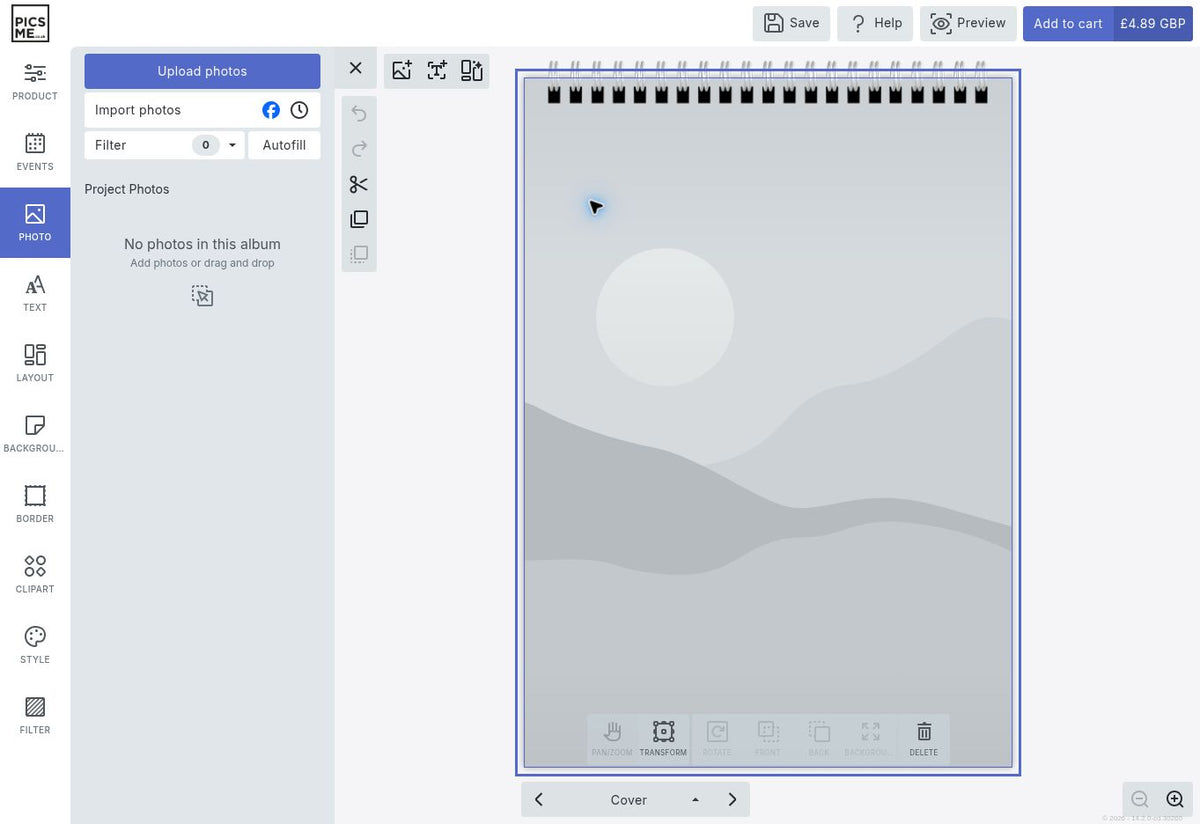
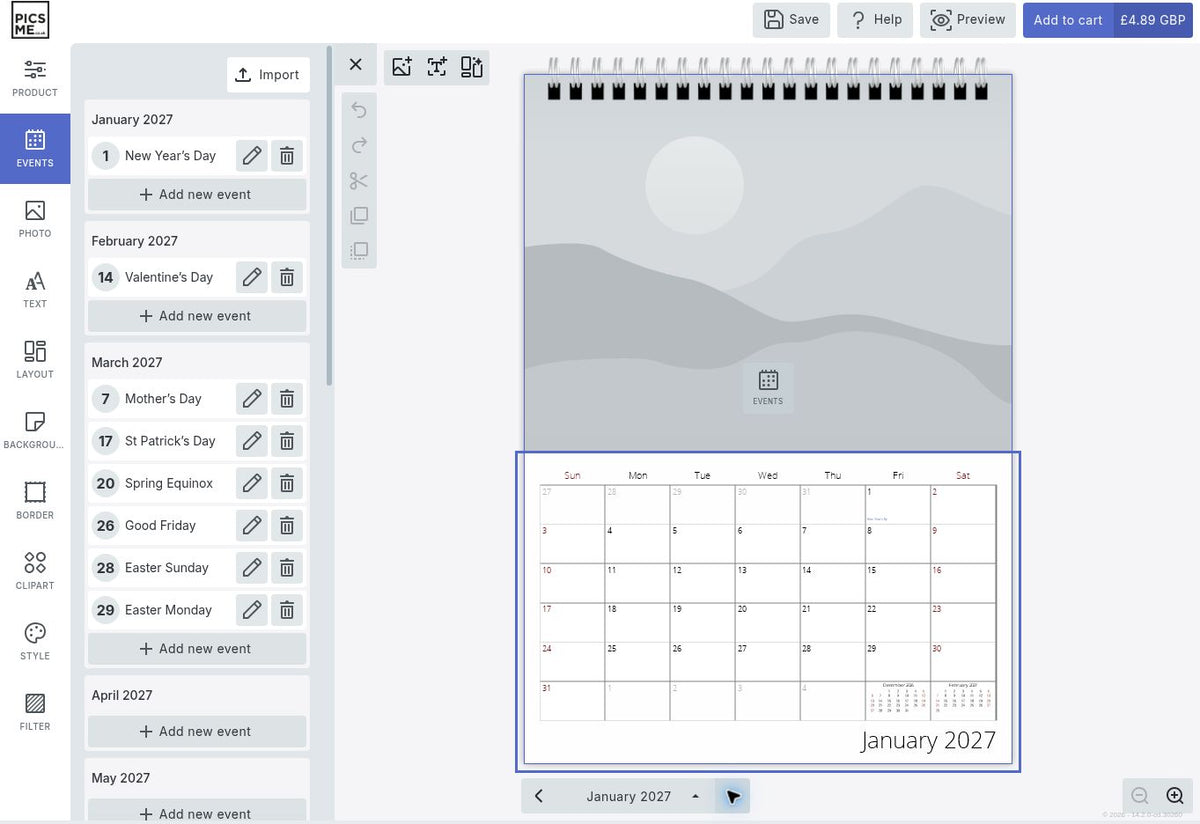
These screenshots show a fresh A4 single-page calendar in the Picsme designer, before photographs have been added. Your design will use your own pictures. Select the starting year and month on the product page before choosing Customise.
1. Upload your photographs
Choose a theme, then open Photo and select Upload photos. Add the originals from your device and place them in the photo areas. The view selector below the calendar lets you move between the cover, an overview and individual months.
2. Add birthdays and important dates
Open Events, find the month and select Add new event. Check the dates already listed, then add your own birthdays, anniversaries and reminders. Use the month selector beneath the design to check how the calendar grid looks.
3. Preview before you order
Choose Preview at the top of the designer. Check the cover and every month for photo crops, image-quality warnings, spelling and dates. Only add the calendar to your basket once you are happy with the design.
Paper, printing and delivery
The current range includes 200gsm silk paper, with 300gsm silk available on selected single-page calendars. Your product page shows the options for that format. Every Picsme calendar is printed and finished in our own UK facility.
Allow time for production and delivery when planning a gift. Check the current delivery options before ordering.
Choose your photo calendar, or read the calendar specifications and guide if you still need to compare formats.
